Te copio las instrucciones (en inglés) directamente de la web de google
Google Sync: Setting Up Your Windows Mobile Phone
Print
To set up Google Sync on your Windows Mobile device, please follow the steps below.
Important Note: Make sure that you have backed up any Contacts and Calendars from your phone to your computer before proceeding.
Getting Started
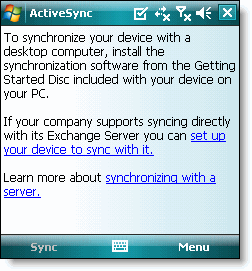
1. Open the
Active Sync application on your device's home screen.
2. Click
Set up your device to sync with it.
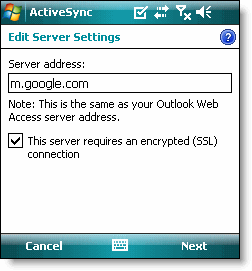
3. Enter
m.google.com as the server address.
4. Ensure that the
SSL option is selected.
 Sign In to Your Google Account
5. Click
Next.
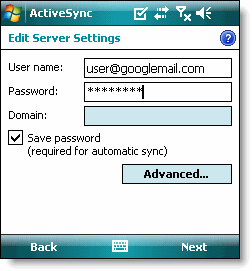
6. Enter your full Google Account email address as the
User name.
7. Enter your Google Account password as the
Password.
8. Leave the
Domain field empty. If your device requires you to enter a domain name, enter
google.
9. Click
Next.
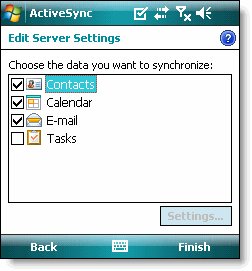
10. Check
Contacts,
Calendar, or
Email, depending on which you'd like to sync. (Tasks is not supported and will lead to an error if checked.)
11. Click
Finish.
12. Press the
Sync softkey on the left to synchronize.
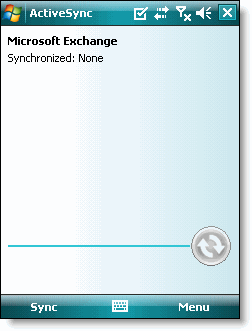
You've now set up Google Sync for your Windows Mobile device.
Sigue las instrucciones y luego sincronizas cada vez con el active sync. Te pasará los contactos si quieres, los correos y las citas del calendario.